
Weekly Review TemplateAug 19, 2026
Weekly Review Template: Run Your Review in 15 Minutes
A weekly review template you can run in 15 minutes every Sunday. Six prompts, a scoring table, and a faster way to capture it by voice.
 Junaid Khalid
Real ways people use Contextli, job by job: support, sales, marketing, founders, developers, doctors, and meetings. Each one shows the moment it helps, what you say, what you get back, and the small setup that makes it w

This page from Contextli walks through job-specific dictation workflows, support, sales, marketing, founders, developers, clinicians, and meeting-heavy roles, arguing that plain dictation only transcribes while Contextli also adapts tone and format to who the message is for. It cites the founder's own 30-day dashboard, 412,159 words dictated, 1,204 replies by voice, and 99 hours saved from typing, as the case for the approach. Setup rests on customizing per-job Modes and, optionally, screen context, off by default and never routed through Contextli's own servers, so the app knows which email or ticket is on screen. It also covers connecting Contextli to Locul so dictations build a self-updating personal knowledge base an AI can query, at contextli.com.
Most people try dictation once, get a wall of text back, and go back to typing. That's because plain dictation only does half the job. It turns your voice into words. It doesn't know who you're writing to, what you're replying to, or how you like to sound.
Contextli does the other half. You tell it once how you write for each part of your job. After that, you press a hotkey, say what you mean, and a finished message lands where your cursor is. No new tab. No explaining. No cleanup.
This page shows real ways people use it, job by job. Each one has the moment it helps, what you say, what you get back, and the small setup that makes it work. Pick the ones that match your day and skip the rest.
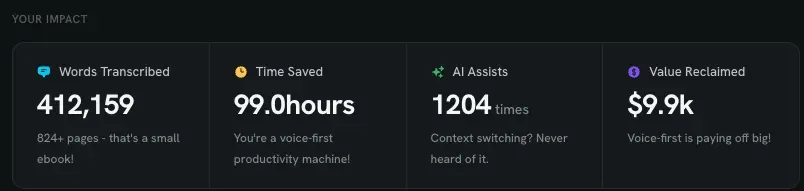
This is our founder's own dashboard from the last 30 days: 412,159 words dictated, 1,204 replies by voice, and 99 hours not spent typing. He uses Contextli for support, sales, marketing, and dev work, on desktop and on his phone.
This takes about ten minutes, and every workflow below depends on it.
Contextli comes with a built-in context called Polished Transcription. It cleans up what you say without changing what you meant. Open it from the Contexts page and add two or three lines about how you like to sound. For example:
Keep it short. Friendly but direct. No corporate words. Use the person's first name. Sign off with "Cheers, Sam".
For most people, this one change covers 90% of what they write: emails, Slack, support replies, LinkedIn messages. You don't need a separate context for every kind of email. That only gives you a menu of ten options you never use.
Add a second context only when you want the output to have a different shape than what you said. A brain dump that should come out as a ticket. A rambling call summary that should come out as a CRM note. A note in one language that should come out in another. The workflows below show when that's worth it. You can write your own under Settings → Contexts → Create New Context, or pick one of the 220 ready-made contexts in the Contexts Library and change a line or two.
Give each context you keep its own key combo. Then you never pick from a menu. You press the key that matches the job and start talking. You can set this under Settings → Hotkeys.
Out of the box, Contextli only hears your voice. If you turn on screen context, it also looks at what's on your screen when you press the hotkey. That's how it knows which email, ticket, or chat you're replying to, and it's what makes replies feel like magic.
A quick word on privacy, because this matters. Screen context is off until you turn it on. When it's on, the screenshot goes straight from your computer to the AI provider you picked. It never passes through Contextli's servers, and we never see it. If you'd rather keep everything on your machine, use Local mode, and nothing leaves your laptop at all. You can read more on our privacy approach.
Install Contextli on your iPhone or Android phone and sign in with the same email. Use it to catch ideas when you're away from your desk: tap record, talk, and add a label like marketing or backlog. Your notes sync to the desktop app, where you can search by label or pull them into Claude and ChatGPT. More on that below.
If you spend your day in Gmail, LinkedIn, or a web CRM, add the Chrome extension too. Same hotkey, same contexts, right inside the text box.
The moment: Twenty tickets are waiting, and you've answered most of them before.
What you say: "Yes, refund him, sorry about that, it'll take 3 to 5 days."
What you get: A full reply in your tone, with your refund policy and your sign-off, pasted into the ticket. About 10 seconds from start to finish.
Setup: Make one support context with your product name, prices, refund policy, tone, and sign-off. Five lines is enough. Turn on screen context so it can read the ticket. Add your product names and features to the Dictionary so they're always spelled right.
Also useful: The Support Issue Note context turns a rambling customer call into a clean ticket. The Churn Reason Note context logs why people cancel, so you can spot patterns later.
The moment: The call just ended, your CRM is open, and you need to log it before the next call starts.
What you say: "Talked to Dana at Northwind. They like the reporting. Worried about price. Needs sign-off from their CFO. Send the 50-seat quote by Friday and set up a reference call."
What you get: A clean CRM note with objections, budget hints, who makes the decision, and the next steps, pasted right into the notes field. No typing between calls.
Setup: Add the Post-Call Debrief context from the library. Turn on screen context so it can see the contact record you're looking at. Add a second context, Sales Follow-Up Note, for the email you send after the call.
Also useful: A short LinkedIn context for messages. Keep the note simple: friendly, two or three lines, no pitch in the first message. Then reply to LinkedIn DMs by voice without leaving the page.
The moment: You're scrolling Instagram and see an ad you could adapt for your own product. Or an idea for a LinkedIn post shows up while you're making coffee. If you don't catch it in the next minute, it's gone.
What you say (on your phone): "Saw an ad from a running shoe brand. The hook is a before-and-after in the first line. We could do the same for our product with the hours-saved number."
What you get: A saved note with the hook, the idea, and why it works, with the label marketing.
Then, at your desk: Search the marketing label in the desktop app. Or, once a week, pull all your marketing notes into Claude and ask for five post ideas. You never typed any of it.
Setup: Add the Marketing Inspiration Log and Content Idea Capture contexts. Use one label per campaign or channel. On desktop, make a LinkedIn post context that writes in your voice, so the post itself is one hotkey away too.
The moment: You're on a walk, or driving, and you think of a bug, a feature, or something a customer said yesterday.
What you say (on your phone, raw transcription): "Bug: the export button doesn't work in Safari when the file is over 10 MB. Feature: let people pin a context to the top of the list."
What you get: Exactly what you said, word for word, saved with the label backlog.
Then, on Friday: Pull everything with the backlog label into Claude and say, "Turn these into tickets with a title, steps, and a priority." Paste the result into Linear or Jira. Or use the Product Bug Report context on desktop to get repro steps and expected behavior right away.
Setup: Use raw transcription for quick capture, so nothing gets rewritten. Use labels to sort. Turn on AI Integrations in the dashboard so Claude, ChatGPT, and Perplexity can read your notes. The Investor Update Note and Decision Rationale Note contexts are worth adding too.
For more on the founder inbox, see Voice-to-Text for Founders.
The moment: Standup is in five minutes. Or you just fixed a bug and need to write the PR description.
What you say: "Yesterday I fixed the login timeout and reviewed Sam's PR. Today I'm on the export bug. I'm blocked on the staging database."
What you get: A yesterday, today, blockers update, formatted for Slack, in about 15 seconds.
Setup: Add the Standup Update, Code Decision Log, and Product Bug Report contexts. Contextli works in VS Code, Cursor, GitHub, Linear, and the terminal, so you can dictate commit messages, PR descriptions, and code comments too.
One more: Talk to Cursor and Claude Code by voice. A spoken prompt is usually longer and clearer than a typed one, and a clearer prompt gets better code.
You can grab our standup update template here.
The moment: The patient just left, and the note needs to be written before the next one comes in.
What you say: "42-year-old, three days of cough and low fever, no shortness of breath, lungs clear, likely viral, rest and fluids, come back if it's worse in five days."
What you get: A SOAP-style note draft in your clinic's format, ready for you to check and sign.
Setup: Add the Medical Visit Note context, or write your own with the exact headings your clinic uses. Turn on Local mode so nothing leaves your computer. Add drug names and terms to the Dictionary so they're spelled right every time.
Also useful: Nursing Shift Note for handoffs, Therapy Session Note and Client Intake Note for therapists. See our nursing shift notes template and counseling progress notes guides.
The moment: The client call ends, and you promised to send a summary.
What you say: "We agreed to launch on the 14th. Priya owns the landing page. I own the email sequence. Still open: the pricing page copy and who handles support on launch day."
What you get: A meeting note with decisions, owners, and open items, ready to paste into an email or Notion.
Setup: Add the Client Meeting Notes context. Here's our client meeting notes template if you want the format.
There are three ways to use Contextli with AI, and they stack.
1. Talk your prompts. Press the hotkey inside the chat box and talk for 30 seconds. You'll give the AI more detail than you'd ever type, and more detail means better answers.
2. Let the AI read your notes. Turn on AI Integrations in your dashboard. Then ask Claude, ChatGPT, or Perplexity things like "What did I decide about pricing this week?" and it answers from your own dictations.
3. Build a second brain that updates itself. Connect Contextli to Locul. Every dictation gets added to your own second brain, and Locul keeps it current on its own. Plug that brain into your AI, and the more you talk, the more it knows about your work and how you think.
Then come back to this page next week and add one more workflow. That's how the hours add up.
If you get stuck, the Help Center has step-by-step guides, and you can always reply to any of our emails. A real person reads them.

Founder, Ertiqah
I'm the founder of Ertiqah, where I build and run a suite of products myself, so my days are a mix of shipping code, marketing, customer support and a lot of writing. Dictation is how I get through that volume: I have used Wispr Flow, Willow Voice, MacWhisper, Superwhisper and most other voice tools, and built Contextli because none of them turned speech into finished text the way I needed. I write about productivity and running many products in The Efficient Entrepreneur on Medium and YouTube.
AI Prompt Generator
Turn a rough idea into a structured prompt you can paste straight into ChatGPT or Claude.
Contextli
Talk instead of type. Contextli turns your voice into clean, organized text with the context that makes it useful, in any app.
Also on Mac · Windows · iPhone and iPad · Android
A weekly review template you can run in 15 minutes every Sunday. Six prompts, a scoring table, and a faster way to capture it by voice.
Junaid Khalid
A vet visit notes template that captures the diagnosis, dosing, and follow-up before you leave the exam room. Speak it into your notes instead of typing.
Junaid KhalidCounseling progress notes software that writes your notes by voice and keeps client data on your own machine, so counselors finish notes the same day.
Junaid Khalid